Digital Signature in Excel
Excel Security
Protect Your Excel Data Using Digital Signatures
Learn how to verify document authenticity and secure your professional reports in under 60 seconds.
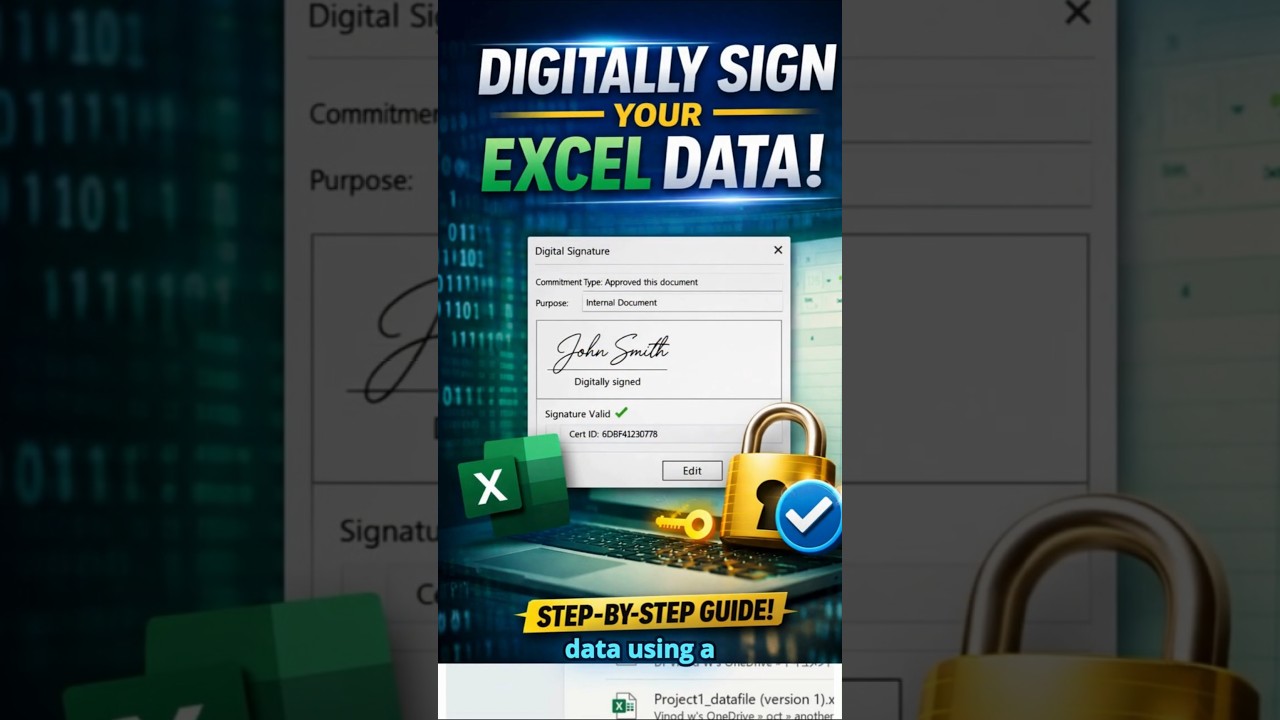
Welcome to DiscoverTalent, your hub for data analytics. In this guide, you’ll learn how to protect your Excel data using a digital signature — a simple yet powerful way to ensure data integrity and authenticity.
Step-by-Step Security
- Step 1: Open your Excel file and go to File > Info.
- Step 2: Click Protect Workbook and select Add a Digital Signature.
- Step 3: Choose a commitment type and enter the document purpose.
Once confirmed, Excel generates a unique digital key that verifies the sender and prevents unauthorized changes.
Key Takeaways
- Digital signatures verify Excel file authenticity
- Any changes after signing invalidate the signature
- Ideal for audits, reports, and internal documentation
This is how a digitally signed worksheet looks — secure, professional, and trusted.
Master Excel for Supply Chain
Learn advanced audit trackers and 5S management using Excel.
Enroll Now

Comments