Create Pivot Table Multiple Views in Excel
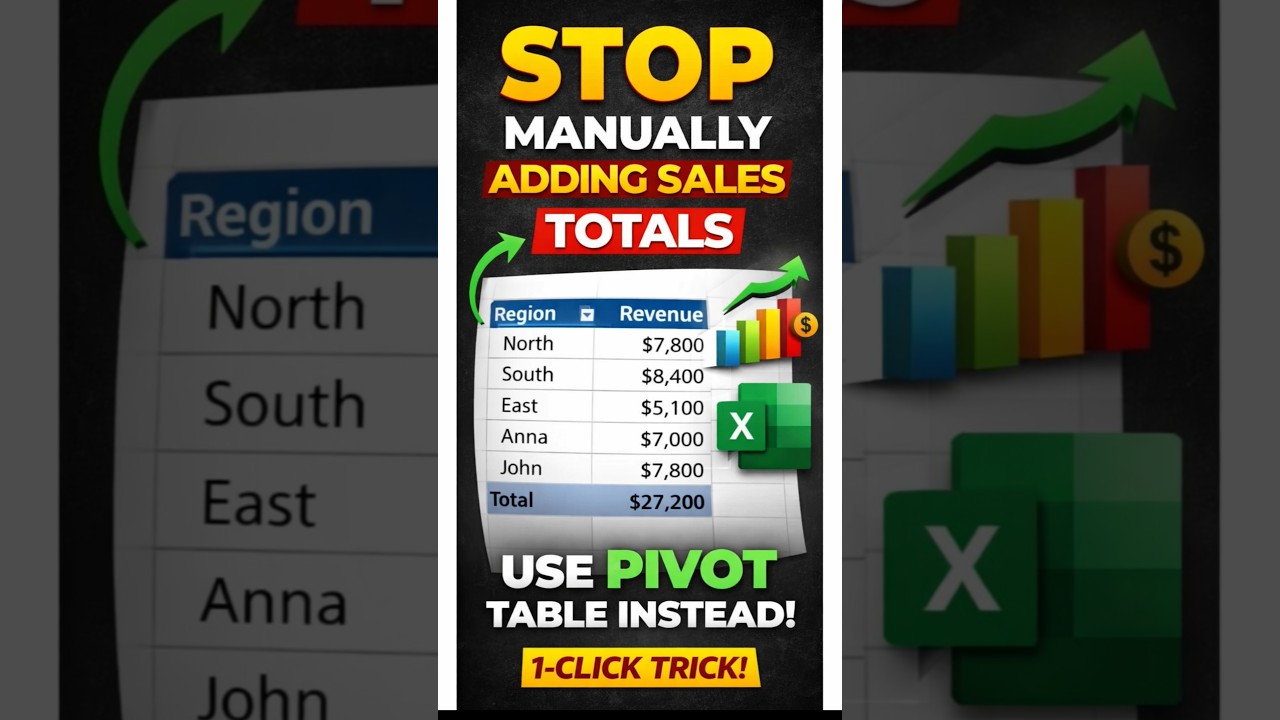
Create Pivot Table Multiple Views in Excel
How to instantly restructure and analyze your Excel data using dynamic Pivot Table views for products, salespersons, revenue, and region performance.
By Discover Talent Editorial Team
Excel Pivot Tables remain one of the most powerful tools for data professionals, analysts, and business managers. In this tutorial, we demonstrate how to generate multiple analytical views from the same dataset without duplicating raw data.
Step 1: Insert a Clean Pivot Table
Select your full dataset → Click Insert → Pivot Table → Choose “New Worksheet.” This ensures clean reporting and avoids clutter.
Step 2: Revenue by Product
Drag Products into Rows and Revenue into Values. Instantly, Excel summarizes total revenue per product.
Step 3: Create a Second Analytical View
Copy the Pivot Table and modify the Field List. Replace Products with Salesperson to analyze performance by individual contributors.
Step 4: Add Region & Units Sold
For deeper segmentation, add Region and Units Sold. This gives a full bifurcation of performance across territories.
Step 5: Convert to Charts
Navigate to Insert → Charts to convert pivot data into visual dashboards for leadership reporting.
Watch the Full Video Tutorial:
https://youtube.com/shorts/16WnTHm_rjUOriginal Article Published At: https://blog.discover-talent-presents.com/Create-Pivot-Table-Multiple-Views-in-Excel.php


Comments