COPILOT for Job Search
How to Build an AI-Powered Excel Job Search Tracker Using Microsoft Copilot
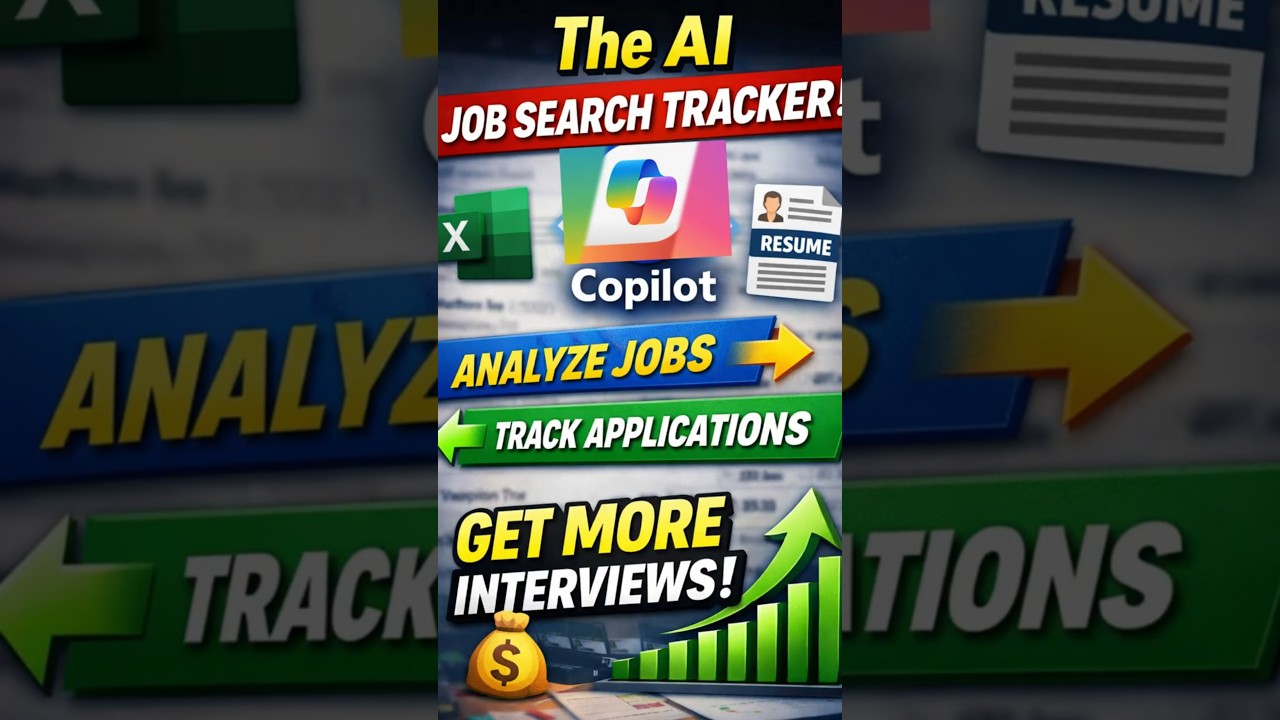
Why You Need an AI Job Application Tracker
Managing multiple job applications can become overwhelming without structure. An AI-powered Excel job tracker allows you to monitor companies, resume versions, skills coverage, and match scores — all in one intelligent dashboard.
Step 1: Extract Required Skills with Microsoft Copilot
Go to copilot.microsoft.com and paste the job description. Use this prompt:
Copilot automatically categorizes skills into technical and soft skill groups, helping you clearly understand employer expectations.
Step 2: Summarize the Role
This provides a structured breakdown of responsibilities whether you're applying as a Data Analyst, Financial Analyst, or Business Intelligence professional.
Step 3: Compare Resume & Identify Missing Skills
Use Copilot to compare the job description with your resume and identify skill gaps. Attach your resume when prompted. This helps:
- Identify missing technical skills
- Improve resume-job alignment
- Increase ATS compatibility
- Boost interview conversion rates
Step 4: Create the Excel Tracker Structure
Add structured columns such as:
- Company Name
- Job Title
- Location
- Date Applied
- Resume Version Used
- Skills Covered
- Match Score
Step 5: Apply Conditional Formatting
Use Excel conditional formatting to color-code match scores:
- Green → High alignment
- Red → Low alignment
This ensures you focus on high-probability applications and avoid low-match opportunities.
Strategic Advantages of an AI Job Tracker
- Data-driven job application strategy
- Automated skill gap analysis
- Faster decision-making
- Higher interview conversion probability
- Professional resume optimization
Primary Blog Version
Read the full optimized version here: AI Powered Excel Job Search Tracker Using Microsoft Copilot
All Rights Are Reserved by Discover Talent™


Comments